So if you follow me on twitter, @jeffreywrensen or are friends with me on facebook, you've seen some pictures of a pile of computer parts and a comment with a few !!! at the end. Those are my new Raspberry Pi computers, and this is a post of why I felt the need to add 2 more computers to a household that is currently at a 5:2 ratio of computers to people. Actually, this is more of a guide of what I did. Why did I need more computers? I want to do my best to stay up with Tech especially when it is aimed at education. I won't be teaching Scratch with a Pi, we'll still be using laptops, but the Pi's purpose is to teach programming in low-income areas.
I got into Linux with the help of @urkomasse at the VinTech conference in January. He also runs a great blog
here. You can set up a Pi using Windows, and there are many good guides, and many confusing ones. I felt more comfortable setting things up since I had experience with Linux and using the Terminal (generally the same Bash commands as Mac).

I found out about the
Raspberry Pi shortly after, probably through twitter and decided that I wanted to play with them. Last week I ordered two along with (I am linking everything to Amazon.com since it took me a while to decide what to buy and if it would work well) a
DLink USB port, two mini wireless
keyboard-mouse remotes, a 1.5 TB
External HDD, a mini
wifi adapter, 2 8GB
SD cards and a few extra thumb drives.

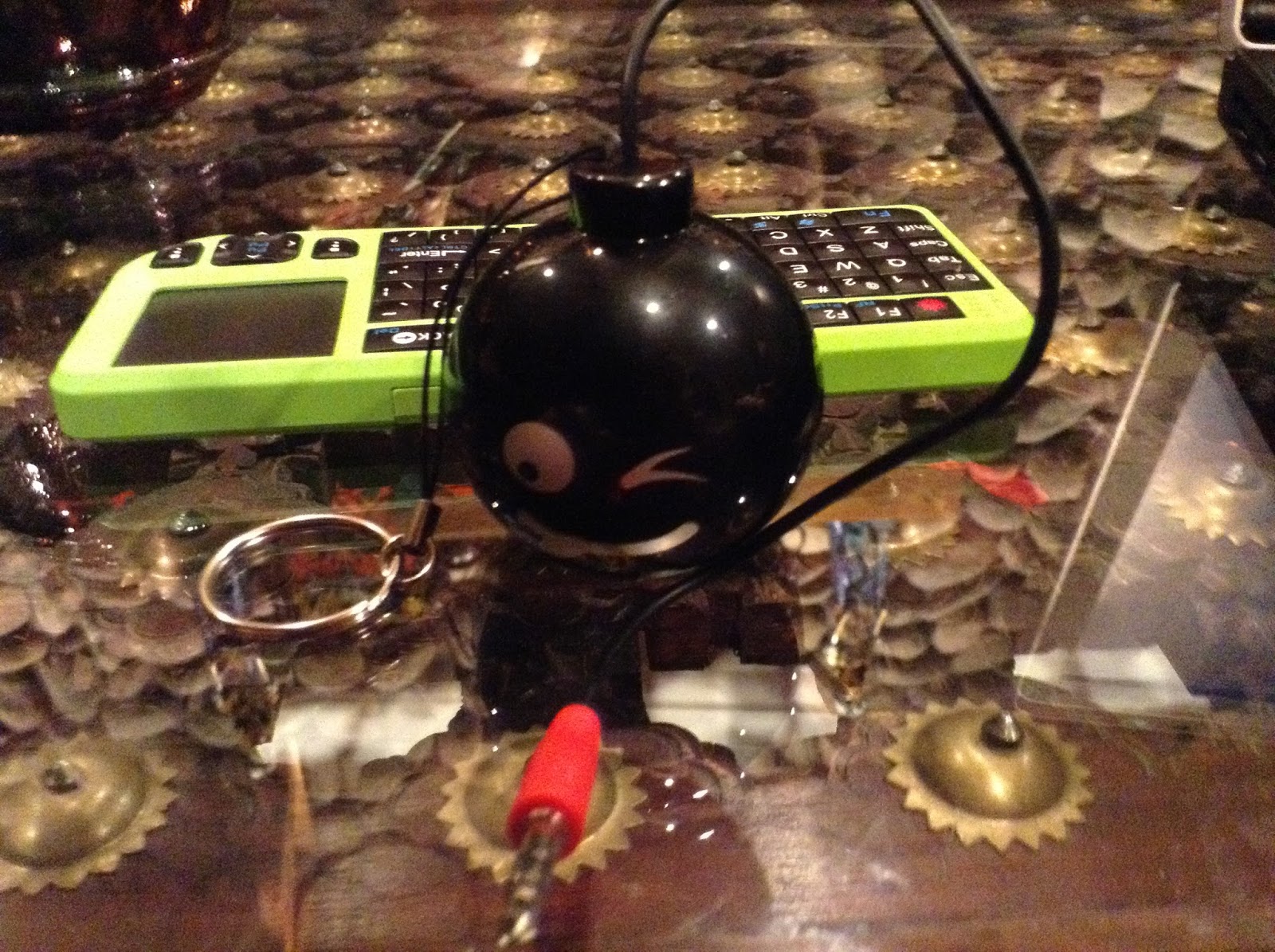
The bomb speaker and the keyboards both charge through USB so there are no batteries involved. Is the sound wonderful? Nope, but it is small and easy and unless I'm watching a Pink Floyd concert, it is an adequate speaker.
The DLink was the hardest thing to verify before I bought it. The reason I chose it was that it plugs into the wall and provides plenty of power through all of it's ports. It powers the Pi and could power the external HDD. Stupidly I got an HDD that also needs to be plugged into the wall. There are a lot of USB 3.0 drives out there, but the Pi needs 2.0, and I also wanted more than a terabyte but I didn't want to spend too much.
The mini keyboards feel a bit cheap, and it feels like I'm texting, but they have worked beautifully. The only issue I've run into is the mini wifi adapter. I've followed a guide that involves rewriting a .conf file to have it interact with the wifi. It didn't work. I haven't done a lot of trouble shooting with it though as I've had my fill of computer trouble shooting for this week. I've simply used the Ethernet (cat5) cable plugged directly into the Pi for web access.
So two Pies. One I've set up as a media center, and the other is to play with and practice programming. Setting up the SD cards (where all the information to run the OS is) was a bit confusing at first. There are a lot of options, and the one I chose was called, appropriately:
Noob. Using the 'Start-up disk creator' I was able to make the SD card a start-up disk and install the .img from the unzipped folder on the disk. This was all done in Ubuntu. There are guides to set these up using Windows or Mac, but you would need to download a start-up disk creator program. In Ubuntu it was quite easy. I slid the SD card in, had the keyboard's usb receiver in and my RCA cable running from the Pi to an old CRT TV. I took the micro (not mini) USB cable from my Verizon phone and plugged the USB A end into the Dlink and....
Nothing.
I assumed it was the SD card, so I re-formatted it and tried again.
Nothing.
I took off the RCA cable and tried running it through the HDMI cable into my mom's new TV. (I'll update about that at the end of this post).

It worked!
In Raspbian, the default video out is over the HDMI. The instructions are to hit 1 or 2 or 3 or 4 to switch the output so that you can use the RCA cable.
Be sure to have the Ethernet cable plugged in, Raspbian (the OS) will want to run some updates. A few minutes later I had Midori (the web browser) running perfectly. I then shutdown the computer - using the terminal and had to quickly unplug it as well. You are supposed to just unplug the Pi, but I still like to run the shutdown command. The Pi will restart without the -r command since it is supposed to be turned on and off by being plugged in or unplugged. I had done my reading and found that "diskutil list" didn't work on my laptop, and was ready to use hd, and start mounting the drive from the command line. Instead, when Raspbian started up, the external drive was accessible through the GUI! Watching videos however, was not going to happen.

I tested this with the External HDD, but will leave a USB stick in it to save any work.
Here are some shots of the screen while it is updating and fully installing Raspbian.
In the command line you can run omxplayer (file name) after using cd to get into the folder that contains the video file. This didn't work, and I think that I was typing in the file names wrong, it was 2:30 AM and I wasn't about to keep trying. I also didn't want to bother doing this to watch videos. VLC is my preferred player, but the Pi is not strong enough to run VLC. This wasn't the purpose of this Pi anyways.
With Raspbian installed, Scratch and a program to teach Python are on the desktop. I'm half way through
Learn Python The Hard Way and will be playing with the Raspian program in the future. So at this point I had one Pi running without wifi, but everything else was easier than expected.
Putting together a media center was my next project. I found that XBMC was the most popular one, but I was hesitant. I wasn't interested in any of the software that gets live TV or displaying any metadata of the movies or TV shows that I was watching. I just wanted to watch the videos that were on my external HDD. I started at
this page and tried to install Xbian as I liked the information that I read about it. I downloaded the .7zip file, extracted the .img and ran Ubuntu's Start-up disk creator... and it failed, so I tried the .gz - instant failure as well.
At this point I decided to try Raspbmc. Downloaded the .7zip, got the .imp and wrote it to the SD card, perfect! I would recommend the Raspbmc flavor of XBMC. First though, make sure your Pi is plugged into your modem/router I was a few seconds late on this and the start-up dialogue tipped me off to my error as it repeatedly tried to find an internet connection. As soon as I plugged it in, it started to install and update and do everything else it needed to automatically. 15 minutes later I was looking at a cool grey and red screen with a list of options - video, music and so on across the middle of the screen. What i did not want to do was mount the hard drive and be stuck organizing my folders and re-naming files for XBMC to read them and download metadata and blah blah blah. I clicked on the Video tab and had access to every folder and file on the HDD in a very nice GUI. I simply clicked on the video file that I wanted to play - and it played! Raspbmc also had easy to access settings menus to choose which video/audio output you wanted and had a few things that could be adjusted.
I had no sound, and found that the default was HDMI sound rather than the 3.5mm jack (head phone or 1/8 inch jack) I had this running into the audio RCAs in the back of the TV. No audio could be heard. I remembered my previous headache with the HDMI vs RCA of the first Pi and figured that it was probably the TV and not the Pi. I plugged in my tiny bomb speaker and got great audio so I was right to blame the TV which is going to be recycled in a day or two anyways. So I'm finished!

I will pursue wifi on the 1st Pi that is just for programming and fun. For the media center one, I will use my laptop to manage torrents (I'm not a criminal mastermind, I'm mostly downloading shows that air for free in the US, but don't air in Hanoi like Modern Family and The Daily Show - which streams for free, but is really slow in Hanoi). I'll just have to transfer these to the external HDD before I watch them using Raspbmc. Is this the fastest way? No, but I don't want to install a torrent client on the Pi or use the other programs that can run with Raspbmc like putty or the other software that is used to procure new video. It runs quickly, is easy to navigate my HDD without:
"XBMC will scan all of your media and create a personalized library complete with boxcovers, descriptions, and fanart. There are playlist and slideshow functions, a weather forecast feature and many audio visualizations. Once installed, your computer will become a fully functional multimedia jukebox." So I'm a happy camper. Unlike Raspbian, XBMC requires that you shut down from within the GUI. This is to keep all of the libraries in order. I've not set these up, but I still use the shutdown button and pull the power cord as soon as the screen goes black. Otherwise it reboots immediately.
Here is a short video of Raspbmc starting up and playing Citizen Kane. Two things that I learned that I cannot do while recording with a mini iPad; plug in a microUSB cable properly and remember to turn the keyboard on. Either way, the video shows how fast it starts up and that you need not set up anything within XBMC, it is just a solid way to watch videos.
I was interested in building an
owncloud server, but didn't want to buy a third Pi and another HDD right now. I'm also very happy with Dropbox. I'm sure I'll find a project for the 1st Pi aside from web browsing, Scratch and Python.
I also helped my mom chose an HDTV - they have wifi on all of them now, but I'm not interested in the junk that streams. They also do not have VGA inputs anymore - at least not on the models I looked at. So with a DVI-HDMI converter, I connected my old Dell that I used for video editing to the TV. The computer is still quite speedy and has plenty of storage space. It was however set to Raid0. Installing Lubuntu, Xubuntu and Kubuntu failed. I finally went back to good 'ol Ubuntu 12.04... and the grub would not install. After a few tries, I used the start up ctrl-i interface to set both of the hard drives so no longer be Raid drives. 15 minutes later Ubuntu was running and the wifi was letting us stream Hulu. I did run into an audio issue which was purely stupid. I played with the system settings trying to get audio over the HDMI before I realized that the computer doesn't actually have HDMI and the DVI output wasn't pushing sound. A nice little set of speakers later and it was perfect and everything was set up in ktorrent to be easy for my mom and she learned how to torrent.
I also set up her old virus ridden XP computer in Ubuntu which she will use for streaming shows as well. I love that Ubuntu can take an old, slow computer that is headed to the trash and revive it into a video center!
Here is Janet running everything from a wireless keyboard and watching Beauty and the Geek.
--Jeff
 so I naturally recreated it like this < (Y >70) > and < (touching sprite 2) >